
Modelled Sheets in Workday Adaptive Planning can often be difficult to troubleshoot and review underlying calculations.
Below are our tips and tricks for drilling into calculations and creating audit sheets.

How to drill into calculations
The default method of drilling into the calculations is through the Row Details menu option as shown below.
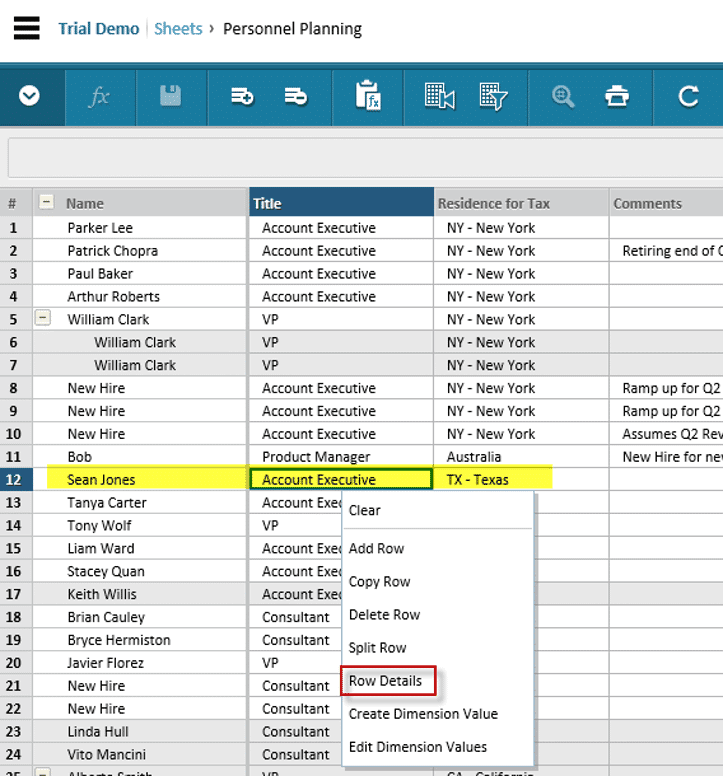
However, viewing data row by row can be tedious especially when trying to reconcile data to a specific month.
An alternative and improved method is to create an audit sheet to enhance the visibility of any modelled sheet in the Adaptive instance.
Steps for creating an Audit Sheet
Audit Sheets should generally be created as the same type of sheet (Level Assigned or User Assigned) as the underlying Modelled Sheet. In this example we are creating the audit sheet as a “User Assigned” sheet which is based off the Payroll sheet.
- Model Management -> Sheets-> User Assigned Sheets
Click “New Sheet” select “Standard” sheet as below
Input a name for the audit sheet.

-
Run through the standard sheet creating wizard
Add model sheet accounts to Account groups
You can add the modelled sheet account(s) by selecting one by one, or by selecting the group name to include ALL accounts in a modelled sheet.
Mark Levels available for this audit sheet (this should match the levels available to the underlying modelled sheet).

Select users and assign access to the audit sheet

Click “Save” to complete.


View the Audit Sheet
The new audit sheet created should look like the following.
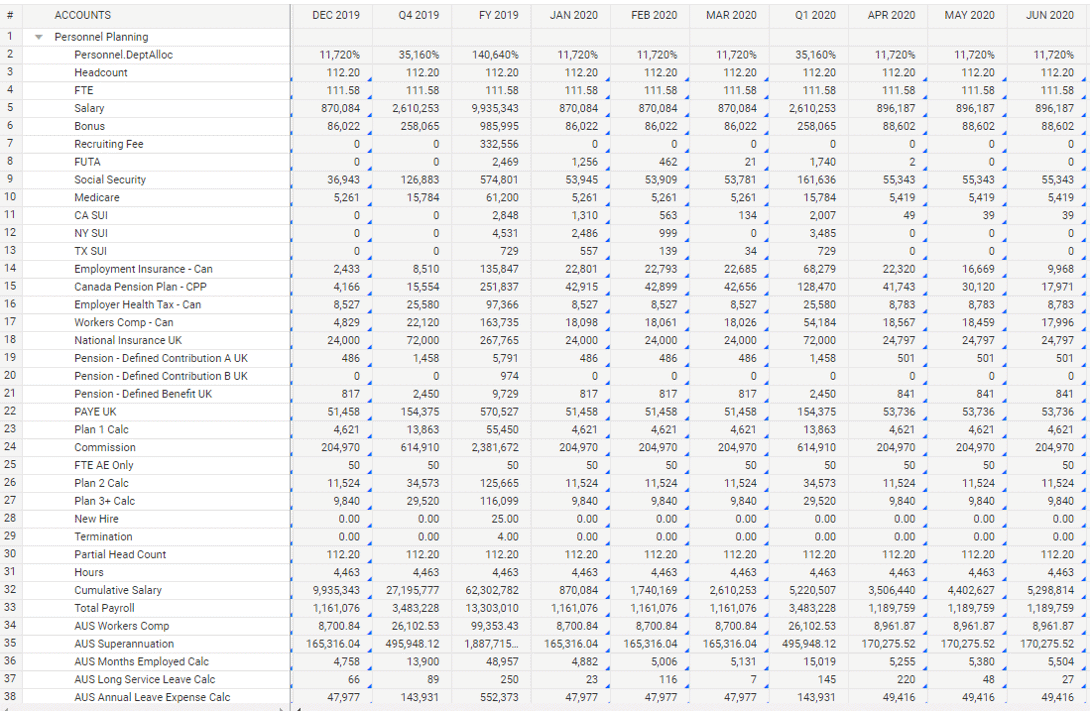
Since the audit sheet in above example is created as a Standard Sheet, we can utilise the standard sheet display options to query and review the data.
For example:
- Toggle view between accounts and levels
Select an account, right click “View by Level” (at the row header section) ; or
Select a level, right click “View by Account” - Modify Display Options to select time columns
Get more Workday Adaptive Planning tips here

Workday Adaptive Planning Health Check Service
QMetrix provides a Health Check service to thoroughly review your instance, re-evaluate your goals and objectives, offer best practice solutions and update the Adaptive Planning solution to fit your business needs.
Find out more about the Health Check