

Alternate calendars in Workday Adaptive Planning
The use of alternate calendar feature allows users to import an additional calendar with a different rollup structure from the primary calendar.
To help conceptualise the value of alternate calendars, here is a scenario for you to consider. You hypothetically own a company that has a financial year end in December. You acquire a new company whose financial year ends in June. Neither company is willing to adjust their financial year structures due to the complexities involved.
An alternate calendar can be imported that allows for two different roll ups for each companies differing structure.
Another common scenario for sales-oriented businesses is to have a default calendar year as well as a financial year (June year-end).
Alternate calendars are imported in the Time area of Workday Adaptive Planning.
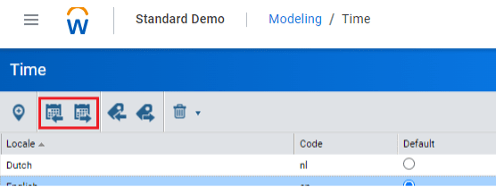
This is essentially creating an additional mapping layer to the most granular stratum that exists – Usually a single day.
To see this in action, watch the video below.
Once you have loaded your alternate calendar, it will then be available in Dashboards, Reports, Sheets and OfficeConnect for you to select.
Due to complexities and risks involved in importing a calendar structure, it is strongly recommended that you liaise with your QMetrix consultants to assist in this process. Prior to consideration of importing an alternate calendar, it is worth reviewing some of their limitations:
- An individual instance is limited to 3 alternate calendars.
- Alternate calendars are limited to 8,000 leaf rows, meaning if your calendar is currently based on day, the calendar can only hold just over 20 years (if more rows are required, users are expected to lodge a request to Workday).
- Explore cell functionality is disabled when reporting against an alternate calendar
- Data can only be entered using the default time stratum.
Contra accounts in Workday Adaptive Planning
Workday enables users to use Contra accounts in Workday Adaptive Planning, thereby better aligning the account hierarchy with source systems.
Contra accounts impact multiple areas throughout the system including:
- Modelling
- Sheets
- Integration
- Reports
- Dashboards
- Office Connect reports
The usual practice is for a GL account to roll-up to the same balance type as its Parent (If the parent is a Credit, the children account balance types will be Credit as-well). This is selected with the editable radio dial for account balance type (Debit/Credit), at initial creation of the account.
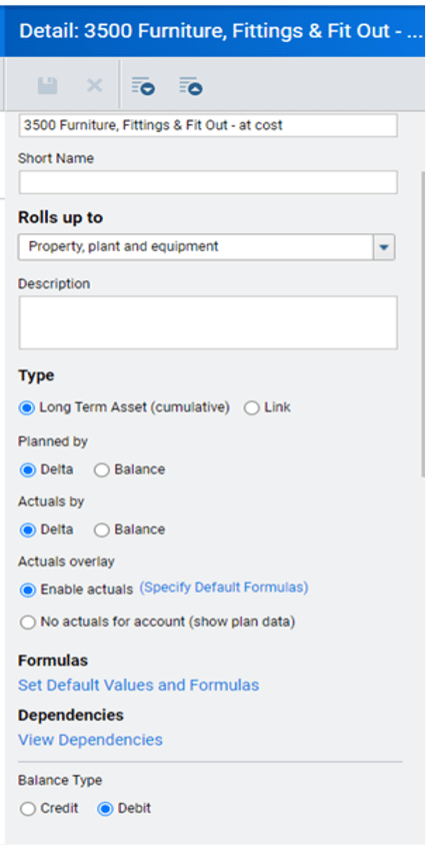
The use Contra Accounts enables the child account to be a different balance type in comparison to the parent.
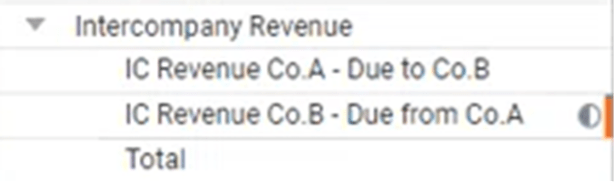
Contra Accounts on a sheet are easily identifiable by the half-shaded circle next to the account name:

Use Case Example (Intercompany Revenue)
Hypothetically, Co A. has acquired Co. B.
Co. A proceeds with an intercompany sale to Co. B for $10,000.
Co B. has a pre-existing amount due (from a prior intercompany sale) from Co. A for $5,000.
With a Contra Account in place, both values will be net-off automatically to display a balance of $5,000.
This improves convenience as users are not required to adjust for a negative $5,000 for the total balance to be accurate.
How to set up a Contra Account
- Navigate to Model Management
- Modelling >> Model Management


- Click on General Ledger Accounts on the Model Management Screen.
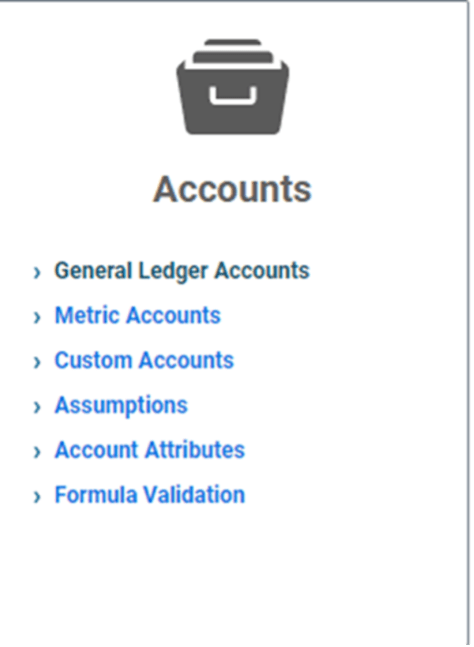
- Locate the GL Parent account.
- Change the required child account balance type to the opposite of the Parent Account (Debit/Credit)
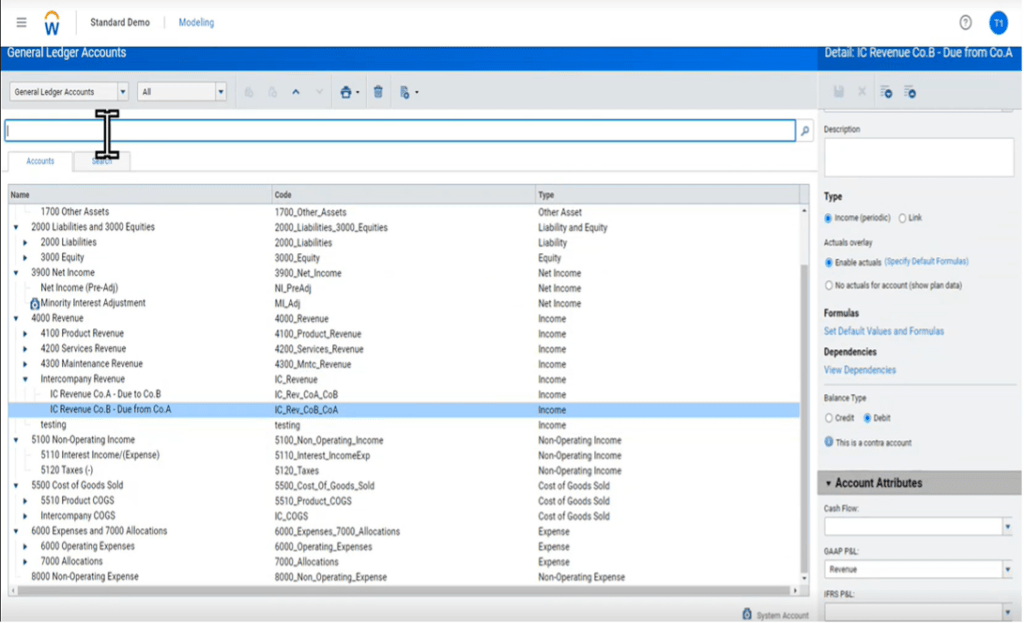
- “This is a Contra Account” will be displayed under the account balance type, confirming that the account is now a Contra Account.
- The relevant sheet will now display the Contra Account symbol next to the account name
Other things to note when setting up a Contra Account
- Attention must be given when reparenting a Contra Child Account, users will need to reset the Debit/Credit flag for balance type as accounts automatically lose the Contra feature once moved.
- Any chart on a Dashboard that uses a contra account will display “Contra” for user convenience.
- A new label type is available for Office-Connect reports under accounts, users are able to select “Contra Account Indicator” on reports to display the Contra Account Icon on the report sheet.


How to create custom accounts and formulas in Workday Adaptive Planning
Creating your own formulas is an important step you can take to better analyse the data in your Workday Adaptive Planning model. In this article we show you how to create custom accounts and formulas.


Workday Adaptive Planning Release Notes 2025: Feature Enhancements Review
Get the latest updates and highlights of each new released feature of Workday Adaptive Planning to enhance your instance.


