The first major update for 2026 has arrived, and it is a significant one. This release focuses on scaling the platform for enterprise-level complexity while making the day-to-day user experience more personalised and intuitive.
Key highlights include an expansion of the Predictive Forecaster, the introduction of “Hubs” for a streamlined workspace, and sophisticated security enhancements for collaborative modelling.
Predictive Forecaster Scalability and Usability
As our clients grow, so do their data requirements. Building on the last release’s predictive forecasting updates, this release significantly scales the Adaptive’s capabilities to accommodate larger datasets and more robust enterprise scenarios, with far greater stability.
Key features
- Expanded Cell Guardrails: Supports significantly larger datasets, with limits raised to 10 million cells for forecast data and 1 million for lever sheets.
- Increased Forecast Capacity: The default maximum number of saved forecast definitions per instance has been raised from 20 to 100.
- Lever Sheet Summary: A new section on the Forecast History page provides statistics to verify exactly how drivers (levers) are being applied.
- Precision Error Messaging: If a forecast fails, the system now identifies the exact intersection (account, level, and dimension) causing the issue.
Benefits
- Enterprise-Scale Planning: Ensures the system grows with your business, processing vast amounts of data across more scenarios without performance degradation.
- Reduced Troubleshooting Time: pinpointing the exact location of data errors allows finance teams to resolve mapping issues in minutes rather than hours.
Adaptive Planning Hubs
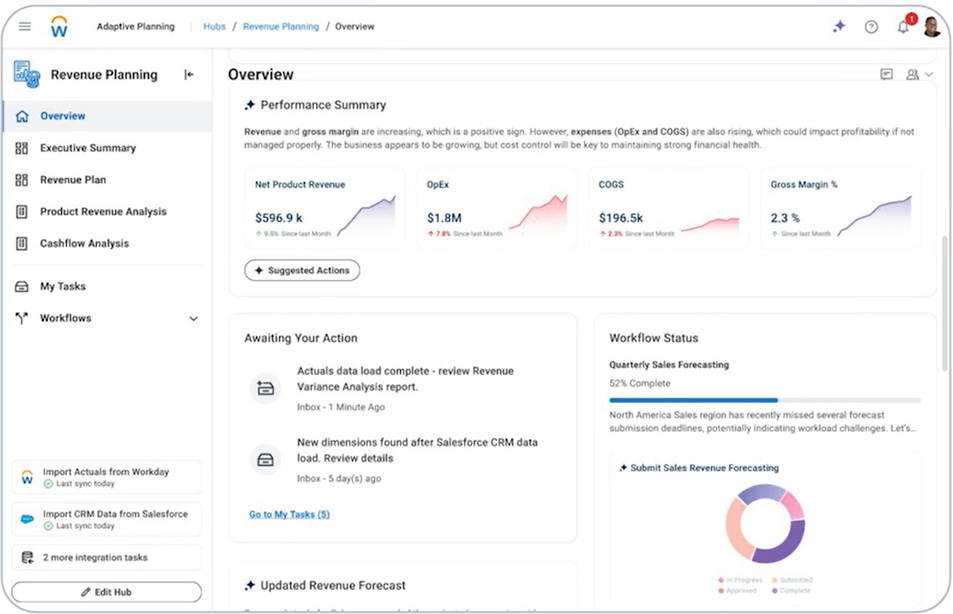
Planning Hubs are my pick of this release. They cut through the clutter by consolidating your dashboards, sheets, reports, links, and tasks into one intuitive workspace. In fact, they formalise a workflow we’ve championed via dashboards for some time. If your team is still juggling multiple tabs or heavily relying on dashboard navigation, let’s discuss how to transition your current setup into a dedicated Planning Hub.
Key features
- Curated Workspaces: Administrators can bundle dashboards, sheets, reports, and external links into bespoke “Hubs” (e.g., a “Sales Hub” or “Finance Hub”).
- Unified Navigation: Users can set a specific Hub as their default home page, ensuring a single point of entry for their primary business function.
- Granular Permissions: Two new security settings (Access Hubs and Edit Hubs) ensure controlled deployment.
Benefits
- Enhanced Productivity: Consolidates all relevant tools into one view, reducing the time spent clicking through complex menus.
- Targeted Relevance: Planners only see content relevant to their role, significantly reducing information overload for non-finance users.
Anomaly Detection for Sheets in Dashboards
This update integrates machine learning directly into the dashboard interface to proactively catch outliers before they become reporting issues.
Key features
- Integrated Toggle: A new “Show Anomalies” option is available directly within the Sheet Menu on dashboards.
- ML-Driven Analysis: Uses at least 24 months of historical actuals to identify data points that deviate from predicted patterns.
- Seamless Navigation: Bridges the gap between high-level dashboard oversight and granular sheet-level investigation.
Benefits
- Proactive Risk Management: Save time by automating the “heavy lifting” of data auditing, identifying unexpected data points before reports are finalised.
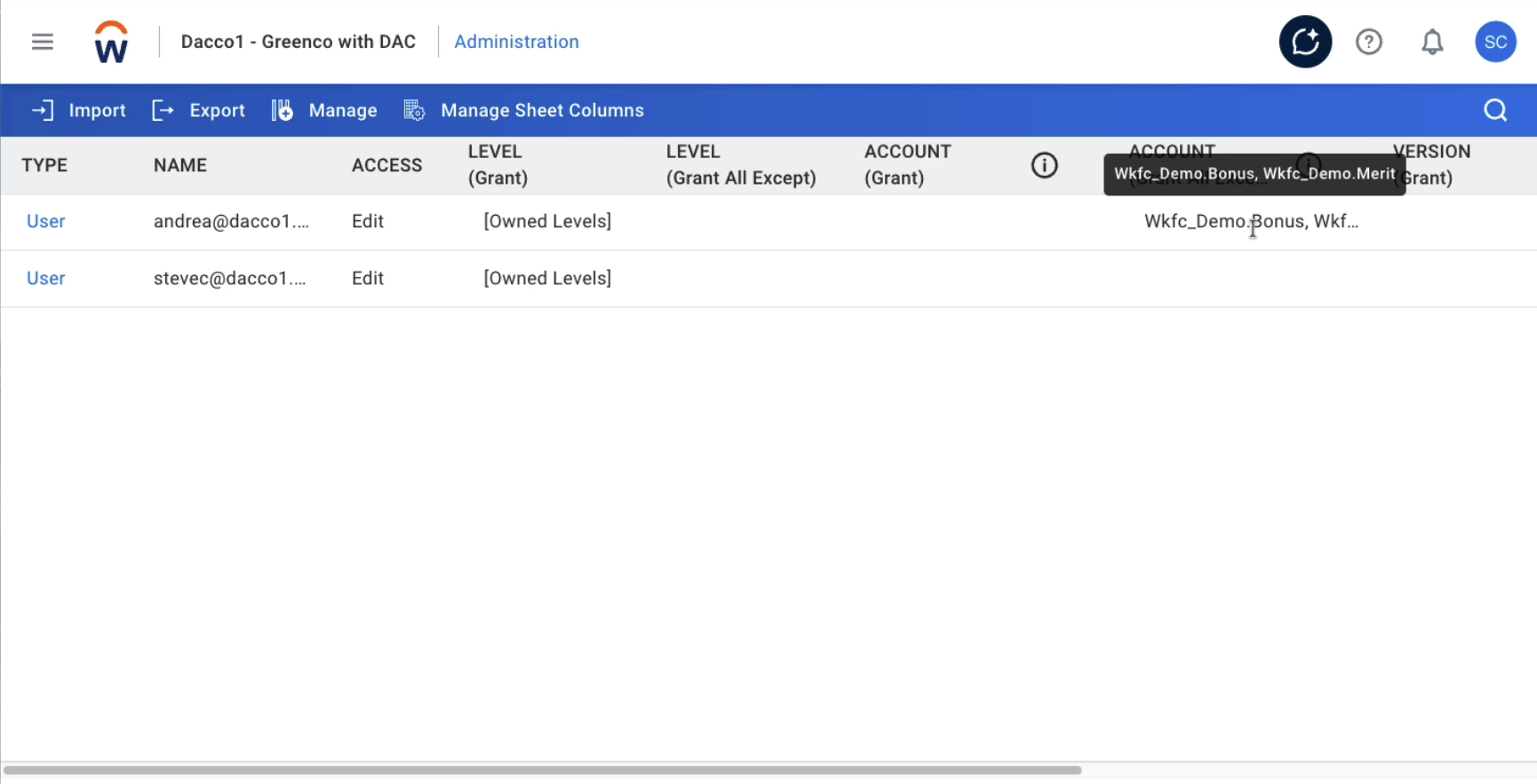
Access Rules on Data Entry Columns
This is a major win for Workforce Planning and sensitive modelling, allowing for column-level security within a shared sheet.
Key features
- Expanded Column Security: Secure specific column types including Check box, Date, Number, and Text.
- Dynamic UI Adjustments: If a user lacks permission, the secured column is automatically hidden from their view and the Display Options menu.
Benefits
- Safeguarded Confidentiality: Protect sensitive data (like salaries) without needing to create multiple sheets, maintaining a single source of truth.
- Improved Collaboration: Allows multiple departments to work on the same sheet simultaneously while only interacting with relevant data.
Configurable Workflows [Delayed until 8/05/2026]
Replacing the legacy Workflow and Process Tracker, this robust framework allows administrators to move beyond simple tracking to actively orchestrate complex planning cycles. You can now design, build, and deploy custom planning paths tailored to your specific organisational needs.
Key features
- Graphical Workflow Builder: Use a drag-and-drop interface to design reusable templates using four distinct task types:
- To-Do: Directs users to specific dashboards or sheets to complete preparatory work.
- Submit: Initiates the formal submission of data for a specific plan version.
- Approve: Enables hierarchy-based approvals with automated sign-off.
- Hierarchy Submit: Automates roll-up submissions across organisational levels.
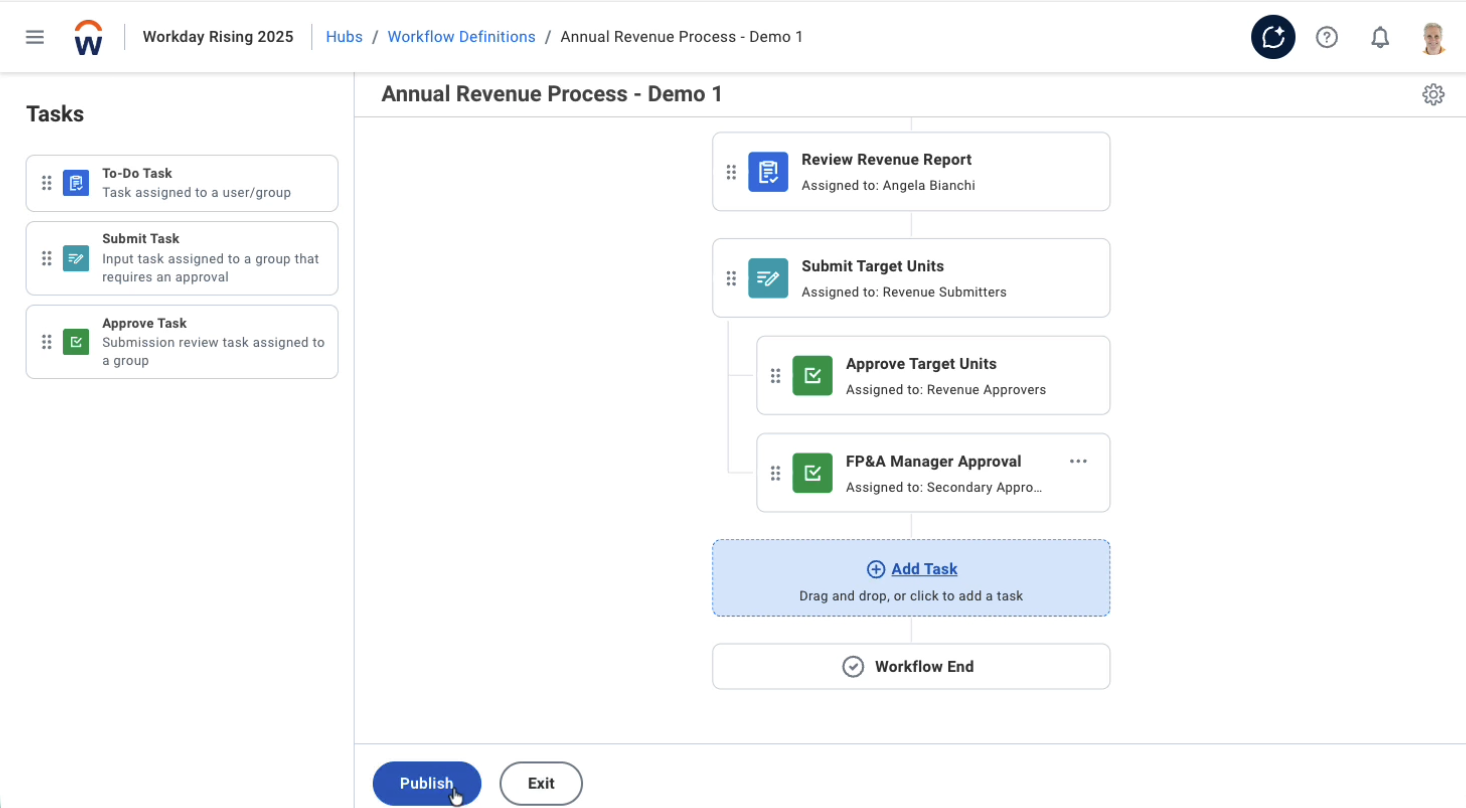
- Granular Sheet Scoping: Limit tasks to specific data slices. Upon submission or approval, the system automatically locks only the defined sheets, ensuring data integrity without locking the entire model.
- Centralised “My Tasks” Inbox: A dedicated hub for end-users to view assignments, access direct links to destination sheets, and perform actions (Approve/Send Back) in one click.
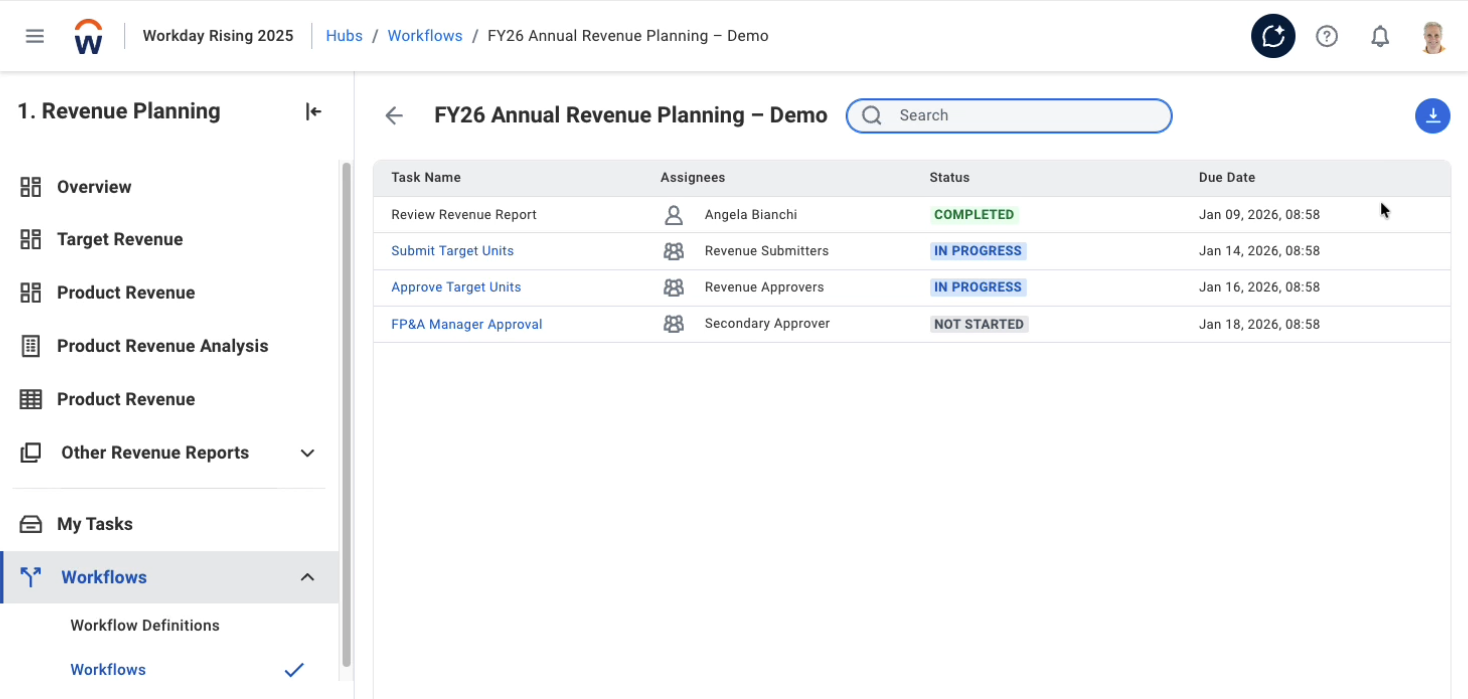
- Dynamic Routing: Assign tasks to individuals, groups, or “Associations” that update automatically based on level assignments, ensuring the right person always gets the request.
Benefits
- Tailored Planning Motions: Whether you are running a bottom-up budget or a top-down strategic plan, you can build a workflow that mirrors your actual business process.
- Automated Governance: System-enforced locking prevents unauthorised changes after submission; “Send Back” actions automatically unlock data and notify the original contributor.
- Increased Process Efficiency: Automate task handoffs, notifications, and submission routing to drastically reduce administrative overhead. Real-time progress heat maps and audit logs ensure you can pinpoint and resolve bottlenecks before they impact your deadline.
Quality of Life Improvements
There are also several smaller enhancements designed to streamline your daily workflow and improve reporting clarity.
- Multi-Select Levels and Dimensions in Modelled Sheets [Delayed Until 27/03/2026]: You can now select and aggregate multiple values simultaneously in Modelled Sheets via dashboard filters, moving beyond the previous single-select restriction.
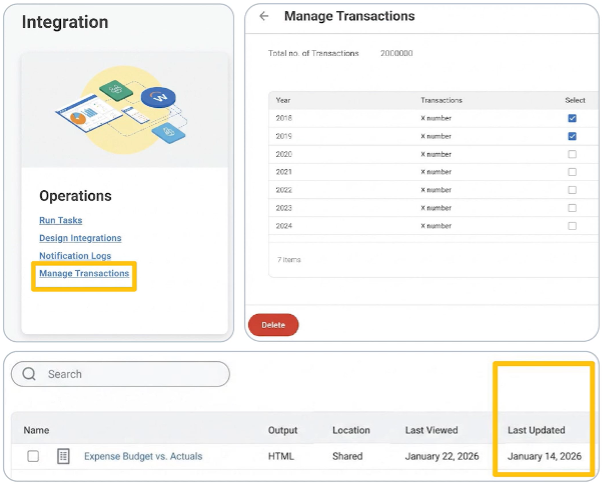
- Matrix Report Timestamps: You can now identify when a Matrix report was last modified, via a “Last Modified” date field when viewing your web reports list.
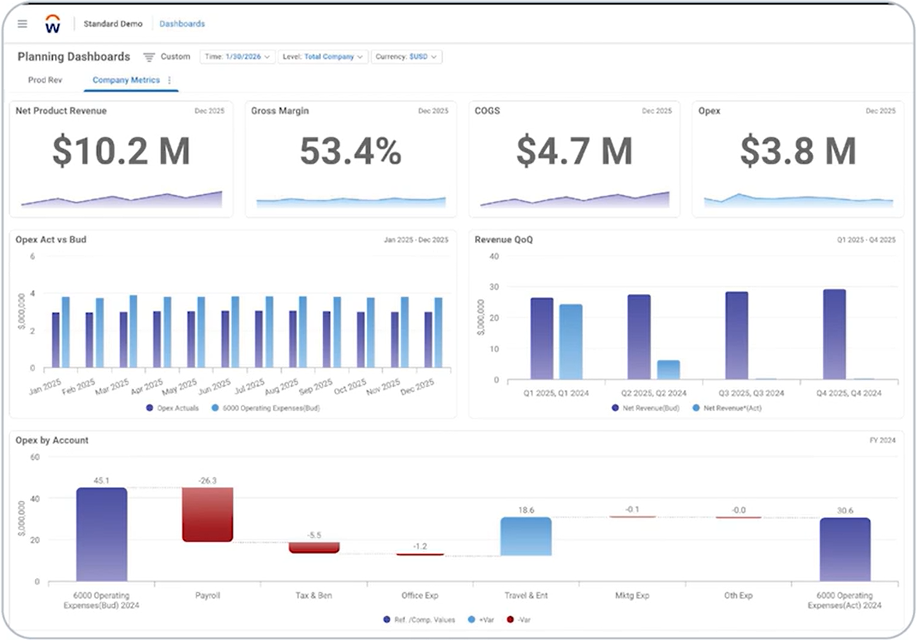
- Modernised Chart Visualisations: Dashboards have received a visual refresh with contemporary design elements like rounded corners and gradient fills. These aesthetic changes are paired with improved granular controls for data markers and gridlines, making complex datasets easier to interpret.
- Adaptive Planning Notifications for Microsoft Teams: Stay on top of your planning cycle with our new Teams integration. Real-time alerts are now delivered directly to your Teams workspace, allowing you to track tasks and activities without needing to be logged into the Adaptive Planning application.
Required Actions
To take full advantage of these features, we recommend the following:
- Assign Hub Permissions: Grant “Access Hubs” and “Access Dashboards” permissions to all users and groups who need to view hubs. Grant “Edit Hubs” only to the administrators responsible for building and managing them.
- Secure Modelled Sheet Columns: Navigate to Administration > Access Rules and use the “Manage Sheet Columns” tool to define the specific columns you wish to protect. Once selected, finalise security by importing an updated rules file using the syntax SheetName.ColumnName.
- Configure Anomaly Detection: Ensure key accounts hold at least 24 months of actuals data. Once verified, configure and generate the necessary prediction versions.
- Deploy Configurable Workflows: Navigate to Administration > General Setup and tick “Enable Configuration Workflows” (note: this disables legacy trackers), assign the “Manage Workflows”, “Access Hubs”, and “Edit Hubs” permissions to your administrators, define your task-routing relationships under Administration > Associations, and begin building your planning cycles using the Workflow Definitions page within a dedicated hub.
- Enable Microsoft Teams Notifications: Administrators must grant admin consent via Administration > Notification Preferences to link the instance, after which end-users can connect their accounts through Manage Notifications and authenticate within the Microsoft Teams app.
- Multi-Select in Modelled Sheets: enable the “Allow editing while viewing rollup levels” setting in your modelled sheet properties.
- Customise Dashboard Visuals: While rounded corners and axis styling are applied automatically, administrators can further refine the look of individual dials via Dashboard Preferences > Themes or the Appearance section of specific chart settings to enable gradients and gridlines.
If you are interested in reviewing these features in further detail, please reach out to your QMetrix Consultant or access the full notes via the Workday Community.
This release note was written by Anthony Ferraro, Consultant at QMetrix.
Looking for previous release notes? You can find them here in our archive.

A trusted partner for Finance and Data Management solutions
At QMetrix, we take a consultative-led approach. That means we don’t just do. Blending business and technology expertise with industry experience, we seek to listen, ask questions, and bring innovative ideas and perspectives to find the right solution for your unique business.