

The Workday Adaptive Planning 2021 R2 update focuses on reporting improvements, streamlined sheet management and UI enhancements. Highlights include changes to OfficeConnect, new data erasure capabilities, and better navigation within reports.
Reporting interface update
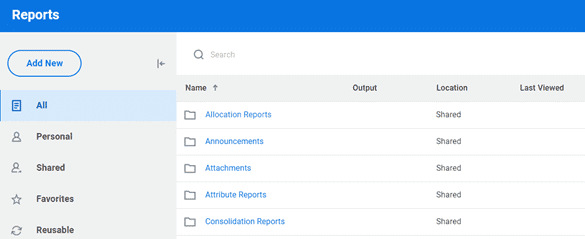
In the Workday release 2021 R2, the reporting overview page has seen some great enhancements and is now more aligned with Workday.
Workday users will notice that the reporting overview page will automatically land on the favourites folder.
In addition to the existing folders, a new folder called “All” has been created.
- This folder holds all reports within the interface and can be searched to help locate reports, regardless of the folder they sit under.
Enhanced OfficeConnect reports functionality
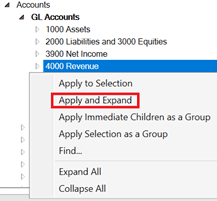
In the 2021 R2 release, the expand elements feature has been enhanced by allowing users to apply and expand in one click.
- By right-clicking on an element from the reporting pane, users can select Apply and Expand to add the expanded elements to a row or column.
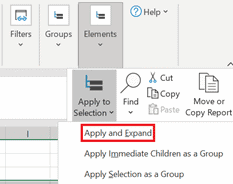
- Alternatively, users can also use Apply and Expand from the OfficeConnect menu.
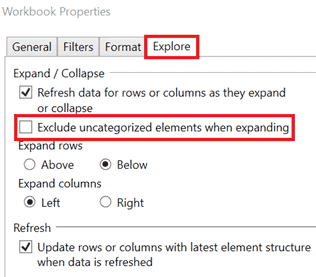
- In addition, users can now exclude the uncategorised and “only” elements from an expansion through workbook properties.
Perspective Context Filters
Context filters have become more efficient and easier to use by introducing a bulk save feature – meaning that multiple filter selections can be changed and refreshed once, rather then refreshing after each filter change.
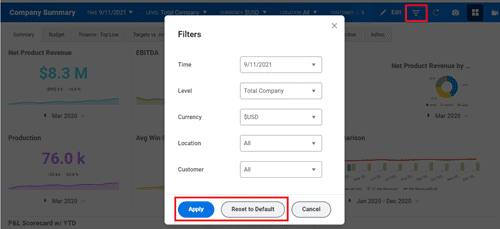
- Users can still change the parameters from the toolbar at the top of the perspective, however these will refresh individually.
- Users are also able to reset the filters back to their natural state, prior to selections being made.
The Workday release 2021 R2 enhancements also include the ability to remember context filter selections after closing the dashboard, meaning the next time you open the dashboard the filters will already be applied as per your previous selections.
Improved sheets management
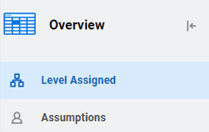
The sheets overview section has had a major facelift. Both level assigned sheets and assumptions are easier to locate and switch between by bringing them together into the one window.
- Sheets can be searched using the search window and sorted for convenience.
When users use the Explore Cell feature from sheets, they will notice that the audit trail and transaction details have been rearranged to make it easier to access.
Saving standard sheet view
- Users are now able to save more view options in sheets, reducing the need to change the view each time a sheet is opened.
- Viewing by account or by level has also been made easier by allowing you to change the display in the minimised dashboard view as well.
Cube sheet performance
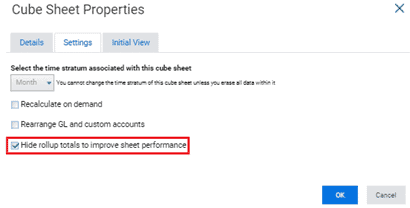
Cube sheet performance has been improved by allowing users to hide rollup totals. Not only does this feature improve performance, but it also improves the visibility of data on the sheet. The more totals there are, the more indentations displayed on the sheet.
This was often criticised as it made the sheets look messy and chaotic, yet the only way users could clean up the sheet was to manually deselect the roll up name for each dimension and attribute.
- Hiding rollup totals will alleviate this issue and make the cube sheets more readable.
Suppression in explore cell
When using the explore cell feature in reports and sheets, suppression will automatically be enabled. This means that rows with blank or zero values will be hidden, providing better data visibility.
- Users are also provided with the option to show zero and blank values by selecting the checkbox at the bottom of the screen.

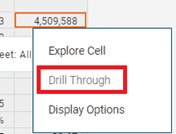
- Users are also now able to drill into the transactions on cube standard accounts from both the explore cell, as well as when you right click on the cell from the sheet view.
Modelling management
Custom Accounts
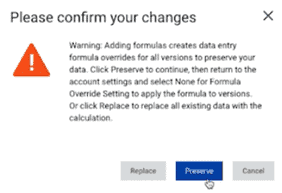
Historical data can now be preserved when users add a new default/master formula to general ledger and custom accounts.
Previously, all data in all versions – including data in locked versions – were replaced when a default formula was introduced.
- Now, when a new formula is saved, users are prompted with the option to either Preserve, which create data entry overrides and use the default formula for new versions – or Replace, which replaces all existing data in all versions (previous behaviour).
Connect with us and stay up to date with Workday Adaptive Planning news and releases: