The Workday Adaptive Planning 2024 R2 release updates the ability to submit data edits directly from OfficeConnect reports, improves monitoring via a “Long-Running Processes” report, and introduces “Archived Versions” for safer data preservation.
Writeback from OfficeConnect to Adaptive Planning
One of the most anticipated features in the 2024 R2 release is the ability to writeback to Adaptive Planning – without leaving Excel!
Before you can try this one yourself, you’ll need to make sure you’ve updated OfficeConnect to the latest version.
How to enable it
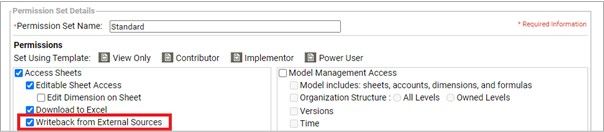
- Make sure your Permission Set has the ‘Writeback from External Sources’ permission enabled.
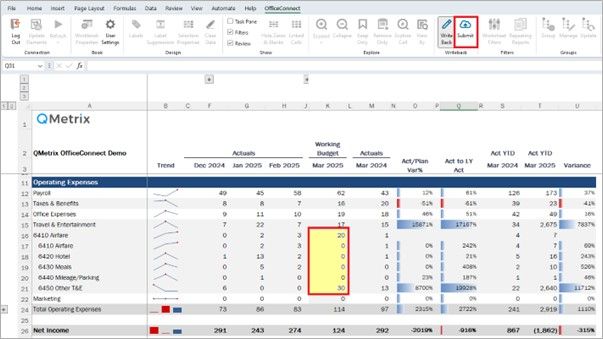
- Once you’ve satisfied the requirements above, you should see a new Writeback section within the OfficeConnect ribbon.

- To use it, select a row or column in your OfficeConnect file that contains some cells you’d like to edit, and click Writeback.
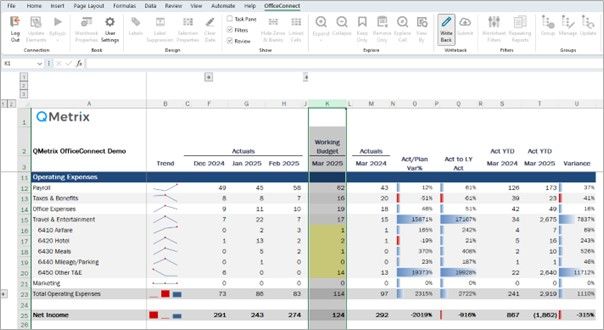
- OfficeConnect will then highlight any of the cells in your selection that can be written back to.
Note: As a general rule of thumb, you need to ensure you’re at the lowest granularity (i.e. you won’t be able to writeback to the Travel & Entertainment row because that is a roll-up, however you can edit each of the GL lines that make up that total). Like when inputting data in a sheet in Adaptive Planning, any unsaved changes will display in a blue font.
- When you are finished editing, ensure you click the Submit button to push your changes back to Adaptive Planning.
What if someone overwrites actuals? Have no fear – writeback is only possible on planned data.
Translated currencies for actuals versions
Does your source system treat foreign currency translations differently to Adaptive Planning?
This has previously presented an issue requiring some clever workarounds; however this should now be a thing of the past.
Key features and benefits
After requesting Workday enable this feature in your instance, you will have the ability to import data into a sub-version of actuals in a single currency (irrespective of your level-currency configuration).
This means you can load your actuals data from your source system already translated.
No more reconciling issues if your ERP or Finance system stores daily exchange rates or unique exchange rates for individual transactions.
Archived versions for data freeze
While locking a version can help preserve your planned figures at a point in time (e.g. those very important Board approved numbers), there have been some limitations.
- What happens if the actuals overlay is altered?
- What happens when a linked account is reconfigured to include an additional filter?
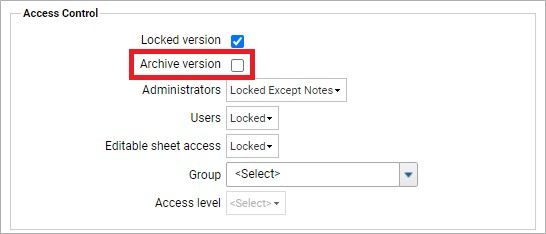
These are no longer issues if you make use of the new Archive version check box in your version settings:
Key features and benefits
Once you’ve locked a version you now have the ability to archive that version, ensuring that all calculated and linked account values will be stored as values, in addition to the actuals overlay at that point in time.
Archiving a version also improves sheet performance when reviewing that version, so there are some great benefits utilising this function.
Send scheduled reports as attachments
Key features and benefits
Do you spend countless hours each month generating and circulating reports? Well, this next feature will probably really excite you.
Workday Adaptive Planning now gives you the ability to schedule reports and distribute them as an email attachment.
How to enable it
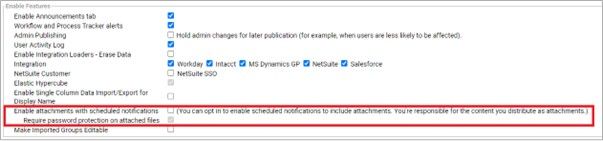
- This feature will need to be enabled in Administration > General Setup, and for the security conscious, password protection can be applied to all attachments.
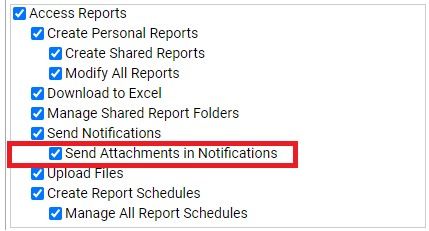
- You’ll also need to determine which users should have this feature, and update your Permission Sets accordingly.
- Provided the above criteria has been met, when creating new Schedules you will see a new option under the Action section.
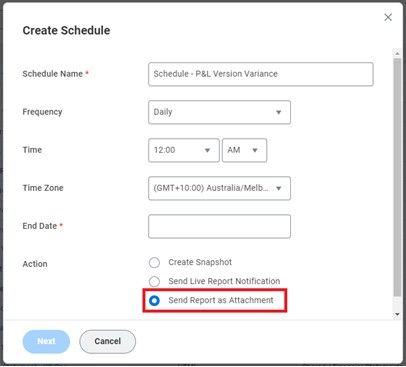
- Then simply follow the prompts to set up your schedule which will send the report as an attachment.
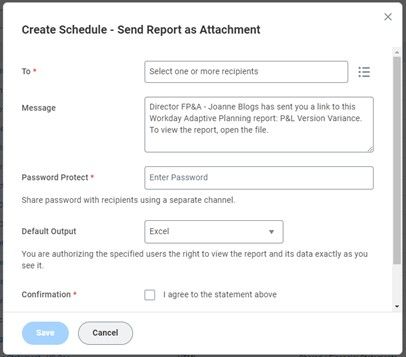
Note: At the moment it is limited to Excel attachments, but if you have users that are finding it surprisingly difficult to log in to Adaptive Planning, they’ll have no excuses when the report lands in their inbox!
If you are interested in reviewing these features in further detail (as well as any others), please reach out to your QMetrix Consultant.
Connect with us and stay up to date with Workday Adaptive Planning news and releases: