
The Workday Adaptive Planning 2025 R2 release introduces intuitive tools like Ask Workday and enhanced dashboard collaboration to streamline planning. These updates simplify forecasting and integration, helping finance teams work more effectively and gain sharper insights.
What’s new in the 2025 R2 release:
- Collaborate within Adaptive Planning
- Multi co-ordinate support for Cell Explorer
- Tasks and task runs in Adaptive Planning integration
- Ask Workday comes to Adaptive Planning
- Version specific overrides for Linked Accounts
- Translated currencies for Actuals Version
- Machine Learning predictive forecaster
- Important update: OfficeConnect version transition after 2025 R2 Release
Workday Adaptive Planning has added more flexibility with linked accounts, made integrations smoother to manage, and provided an option import actuals in translated currencies – no more messy conversions! On top of that, OfficeConnect is getting an important update to keep reporting and audits running smoothly.
Collaborate within Adaptive Planning
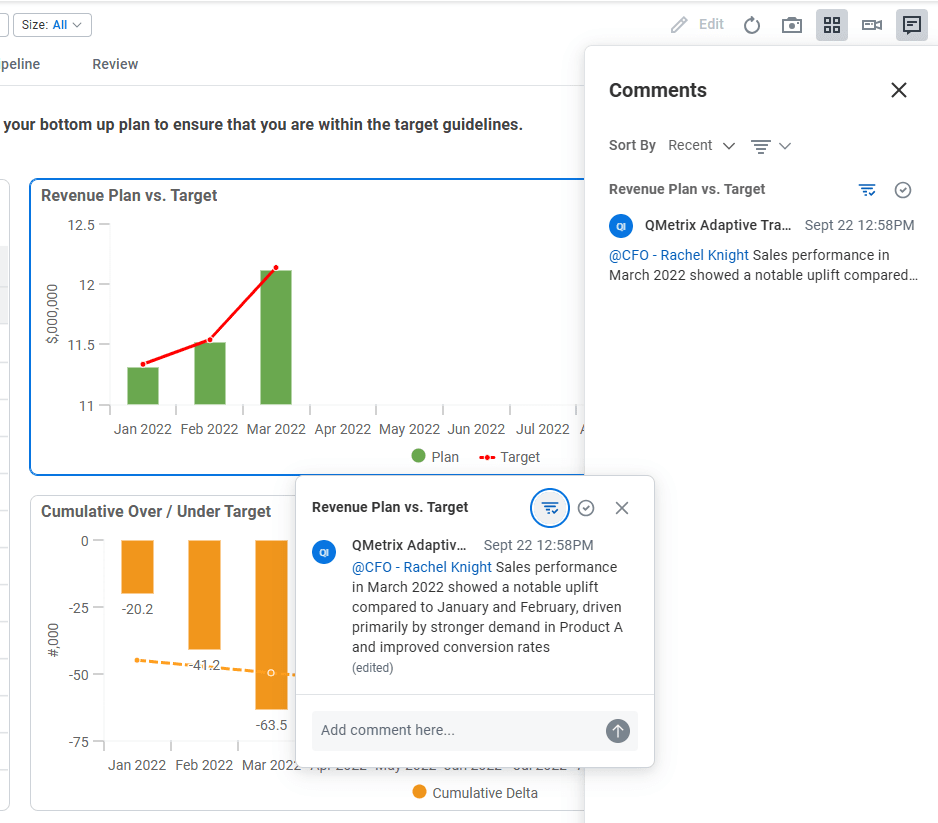
The new Workday Adaptive Planning 2025 R2 release has made collaboration easier with new chat capabilities, user tagging, and expanded notification, all directly within your dashboards.
We have identified some of the benefits below:
Key features
- Start and join conversations directly on dashboard widgets.
- Tag users in comments to draw attention or ask questions, triggering notifications for tagged users.
- Stay informed with notifications inside Adaptive Planning and integrated tools like Slack.
- Jump straight from a notification to the relevant comment and its data context.
- Use a filter icon on comments to match dashboards to the exact view when the comment was made.
- Edit your comments, sort discussions, and delete threads when needed.
- Admin capabilities are the same as end-users with the additional ability to delete any comments from end-users.
Benefits
- Streamlined communication: No more juggling emails, spreadsheets, or external chat apps. Discuss insights right where the data lives.
- Aligned context: Conversations link directly to dashboard widgets, and filter settings automatically adjust so everyone sees the same data.
- Secure discussions: Keep sensitive planning conversations protected within Adaptive Planning’s user access framework.
- Faster decisions: Tag colleagues, get immediate notifications, and resolve questions quickly – all in context.
Multi co-ordinate support for Cell Explorer
Cell Explorer in Adaptive Planning dashboards and reports is one of the most commonly used features for our clients – and it just got more powerful.
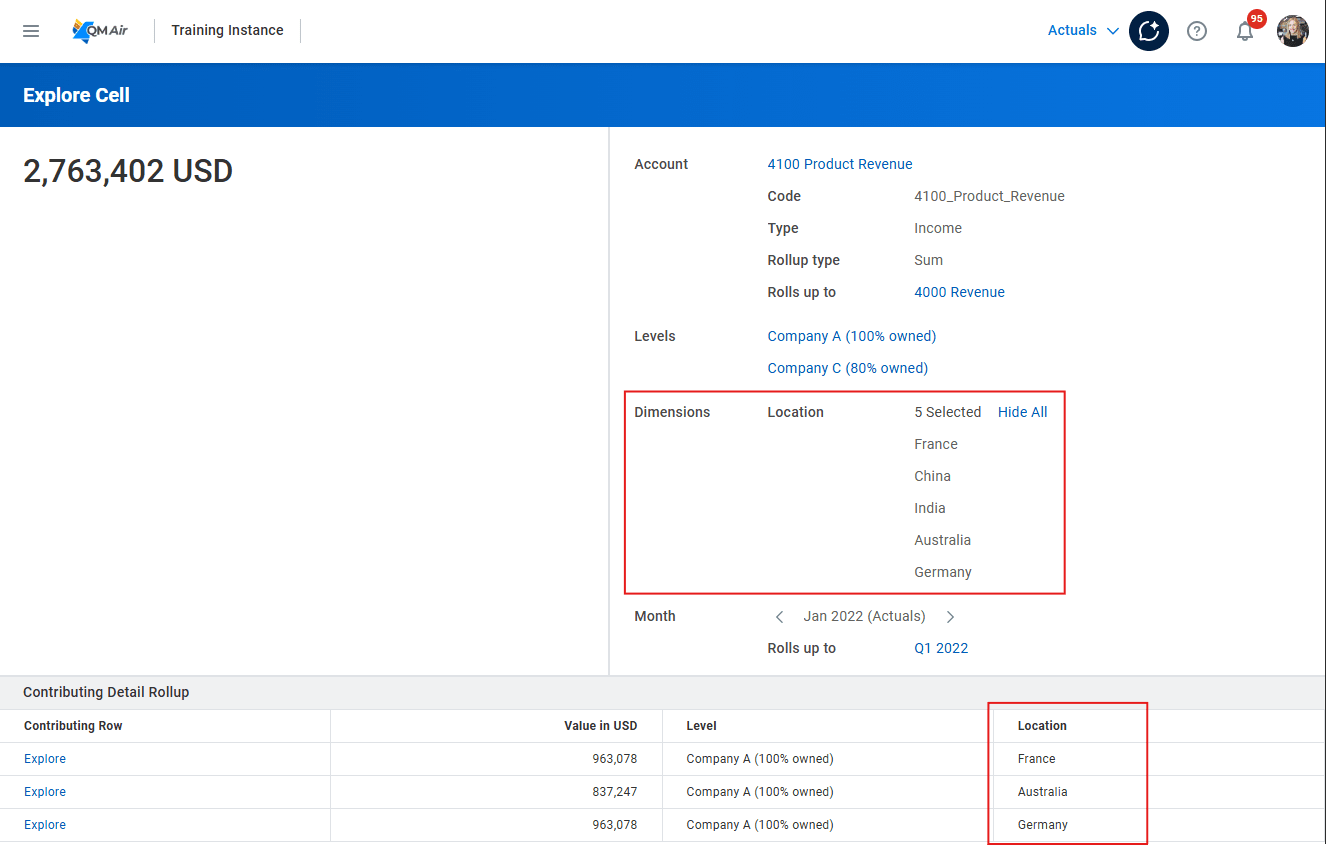
With new multi-level and multi-dimension coordinate support, you can drill into the details behind aggregated data, even when multiple selections are applied in filters.
Key features
You can now use Cell Explorer when selecting multiple values across dimensions and levels. These values can be any combination of:
- Dimension values on different dimensions
- Dimension values on different hierarchy levels within a dimension
- Dimension values on the same hierarchy level within a dimension
- Levels values on different hierarchy levels
- Level values on the same hierarchy level
When selecting multiple level and dimension values on your dimension filters and navigate to Cell Explorer, you can now see:
- All dimensions and attributes shown in their respective sections.
- Rolls up to links in the Accounts and Time section, when parent accounts are available and accessible.
- Show All / Hide All links when 5+ values are selected, giving you quick control of visibility.
- Automatic suppression of all-zero or blank rows for multiselect (the checkbox remains for single selections).
The Level section is now renamed as Levels for clarity.
Benefits
- Faster root cause analysis: Quickly uncover the data driving aggregated results to accelerate problem-solving and exception reporting.
- Greater flexibility: Explore data with more precision through multiselect filters and custom rollups.
- Less manual work: Eliminate the need for exports, pivot tables, or multiple reports, while guided selections help prevent incorrect filtering.
Tasks and task runs in Adaptive Planning integration
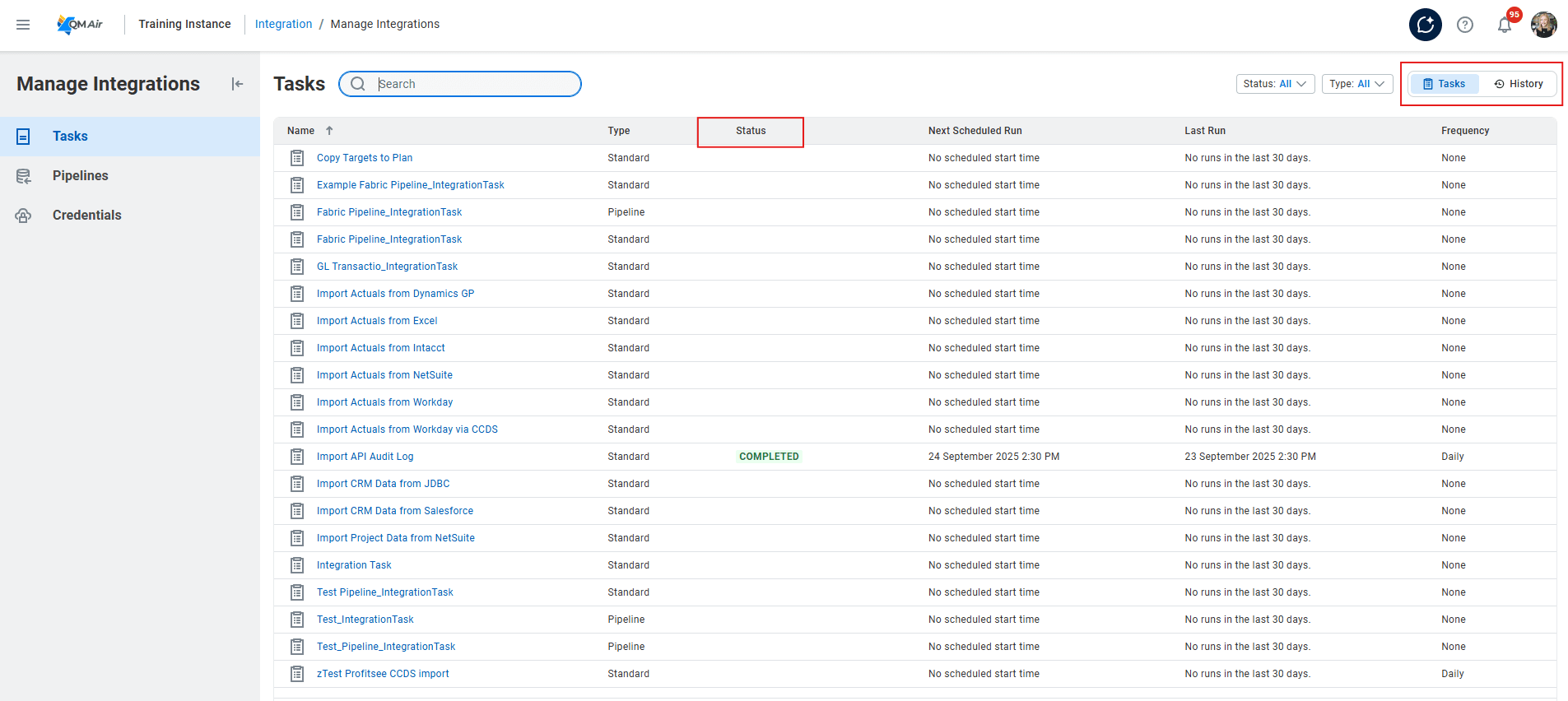
Managing tasks in Adaptive Planning Integrations just got easier. Workday has streamlined the experience by bringing tasks and task runs together on a single page, giving you more control with filters, and even adding a quick way to create new tasks.
Key features
The All Tasks page is now simply called Tasks in Manage Integrations. In addition, a new toggle has been added that lets you switch between:
- A list of tasks.
- Historical task runs.
When viewing task runs, you’ll see:
- Name
- Status
- Last Run
- Duration
- Frequency
A new Status filter is available on both views: Tasks and History
Benefits
- Save time and effort: View and manage both current and historical tasks from one place.
Ask Workday comes to Adaptive Planning
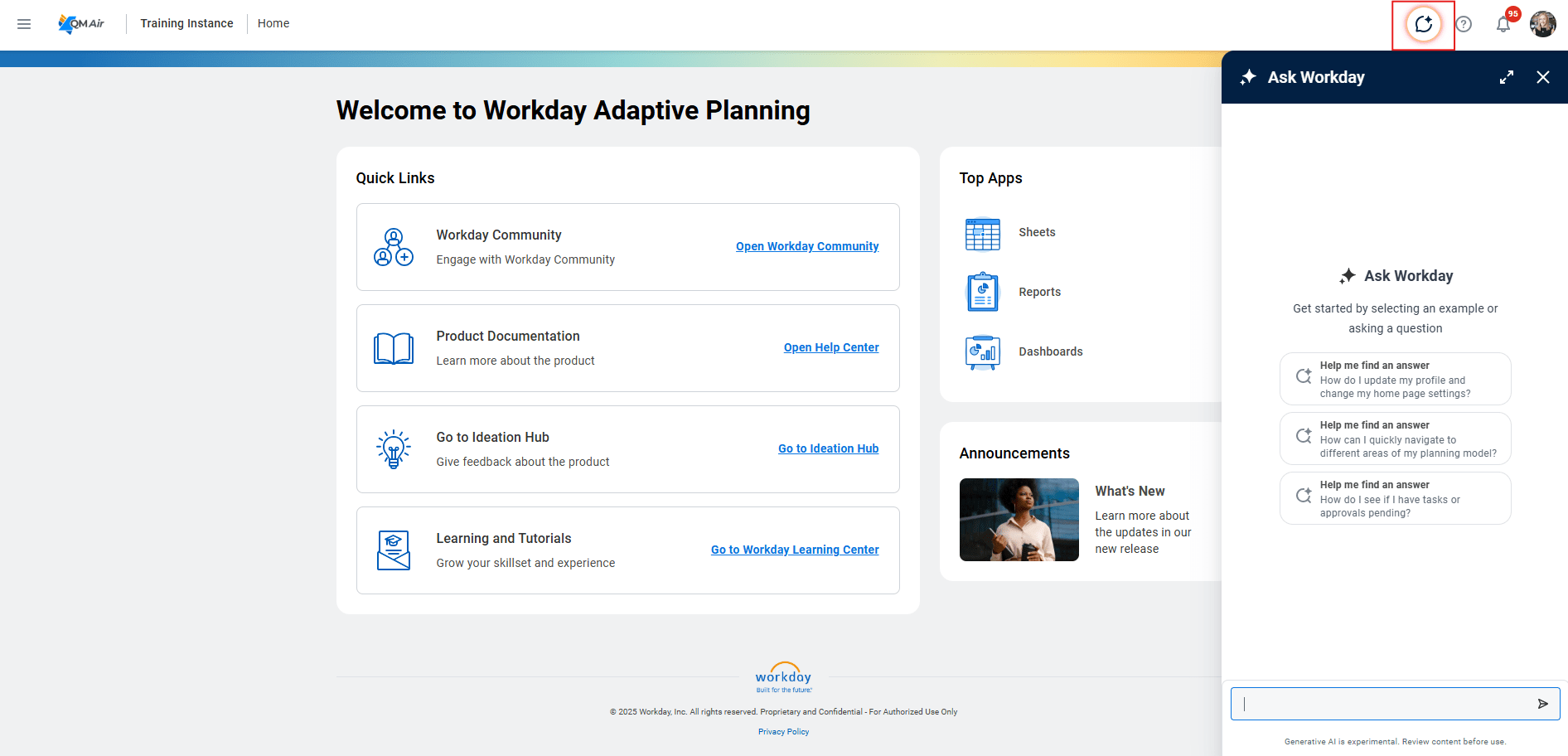
Ask Workday is now available for Adaptive Planning, a new AI-powered interface that makes it easier to get answers, guidance, and insights for your planning needs.
Key features
With Ask Workday, you can:
- Ask questions naturally and get context-aware answers on the spot.
- Access quick, concise help without disrupting your workflow.
- Use the “Help me find an answer” prompt on the welcome screen to discover common questions
- Benefit from smart enhancements like:
- Type-ahead recommendations
- Prompt suggestions
- Response feedback
- Full-screen mode for easier navigation
Benefits
- Smarter decisions, faster: Ask questions in plain language and uncover insights or suggested next steps right in context.
- Accessible to everyone: A conversational interface makes advanced planning tools easy to use across all skill levels.
- Seamless learning: Quickly find answers to common tasks like setting up alternate calendars, creating ML forecasts, reviewing scenarios, or changing default currencies, without hunting through documentation.
- More productivity, less support: Intuitive help reduces dependency on support teams while speeding up adoption.
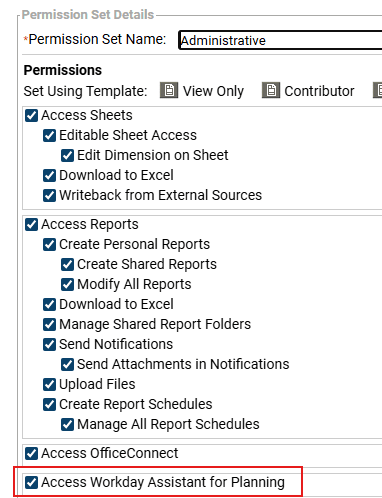
How to access Ask Workday Planning:
Version specific overrides for Linked Accounts
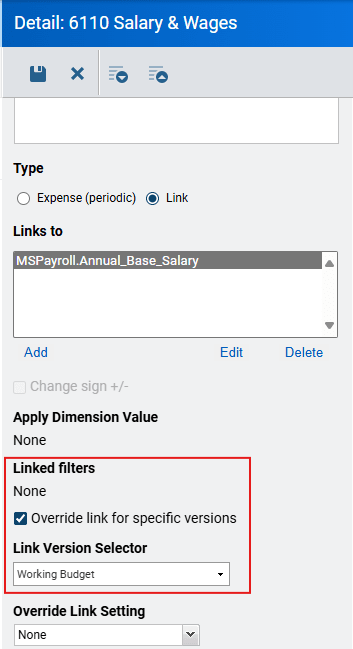
With the 2025 R2 release, version specific overrides for linked accounts are now generally available.
This update gives you the option in the accounts settings to enable linked accounts for data entry in specific plan versions.
Key features
- New Link Filters options in account settings:
- Override links for specific version — enables override fields.
- Link Version Selector — choose the plan version to override.
- Override Link Setting — select None (keep link) or Data Entry (allow imports and sheet input).
- Available for accounts that support links, including:
- Cube Standard
- Cube-Entered
- General Ledger
- Custom
- Once overrides are set, you can enter data directly in sheets or with manual imports.
- During actuals overlay periods, plan data is shown when both of these apply:
- Enable Actuals for Link is active.
- Data Entry is selected for the override setting.
Benefits
- More modelling flexibility: Use linked accounts where they make sense and override them in other versions when direct entry is needed.
- Multiple ways to input data: Overrides allow you to import data, use Predictive Forecaster, or enter values directly into sheets.
- Smarter planning workflows: Adapt how accounts are used across versions without restructuring your model.
This is a truly welcome addition, making it much easier to handle linked accounts for multiple budget versions.
Required actions
To enable this feature for a linked account:
- Go to Modelling
- Select either:
- Custom Account
- Generalledger
- Edit a cube sheet and click Cube Accounts from the Sheet Summary page
- Select the linked account
- Click the check box for Override links for specific version
- Complete the other fields that display
- Save
- Load or enter data.
Translated currencies for Actuals Version
With the 2025 R2 release, translated currencies are now available in Adaptive Planning.
This means you can load actuals data in either the local currency of each leaf level as you’ve always done or in a single translated currency across all levels.
Key features
- Enable Translated Currency: A new setting in the Version area of Modelling allows you to turn on translated currencies for actuals sub-versions. You can then select a single translated currency from the dropdown.

- Enhanced imports in Design Integrations:
- Choose the nested currency in a sub-version to load data in a single currency across all levels, or
- Select the sub-version to continue loading data in the local currency of each level.
- Data display:
- Sheet data and Explore Cell continue to use local currencies by default.
- Dashboards, OfficeConnect, and Web Reports now show reporting values using the selected translated currency.
Benefits
- Eliminate conversion variances: Loading translated actuals directly from your source removes discrepancies caused by Adaptive Planning currency conversion.
- Data consistency: Actuals in Adaptive Planning match exactly with the source system’s translated actuals.
- Simplified reporting: Reports pull directly from translated actuals, eliminating the need for exchange-rate conversions.
Machine Learning predictive forecaster
Predictive forecasting in Adaptive Planning just got smarter and more user-friendly. This release introduces automatic field population, a new ARIMA algorithm option, and a feature impact chart for deeper forecast explainability.
Key features
- Automatic field population when you:
- Create a new forecast.
- Enter a Sheet value for the first time.
- Reset fields after switching sheets or forecast versions.
- Fields auto-populated on creation: Forecast Version, Accuracy Metric, Actuals Version, Plan Version, Autodetect Seasonality.
- Fields auto-populated on Sheet entry or reset: Forecast Start/End Periods, Levels, Dimensions, Actuals Start/End Periods.
- New forecasting option: ARIMA added to the Algorithm field.
- Updated guidance: Enhanced tooltip for Dimensions field.
- Safeguards: Confirmation dialogs when changing Sheet or Forecast Version, warning that related fields will reset.
- Improved explainability: A new Feature Impacts chart on the Confidence Metrics tab of the Forecast History page highlights drivers of forecast results.
Benefits
- Faster setup: Key fields now auto-populate when creating or editing forecasts, reducing manual effort and making forecasting accessible to all skill levels.
- Improved accuracy: The ARIMA algorithm accounts for data patterns and unusual events, generating more precise forecasts.
- Greater transparency: The feature impact chart explains which factors and regressors influence your forecast, improving trust and clarity.
Important update: OfficeConnect version transition after 2025 R2 Release
A new version of OfficeConnect will be available following the 2025 R2 release on September 20, 2025.
What’s happening
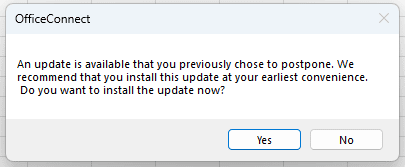
- Users on the 2025 R1 version (2025.102.1819.1857) will be prompted to update when they log in after the release.
- If the in-app update fails, the prompt will reappear the next day until the upgrade is completed
- Remote updates via system management software are not affected.
Grace periods for upgrading
Depending on your setup, you have these grace periods for upgrading to the latest version of OfficeConnect to ensure a smooth transition:
- Per User: The earlier of
- 45 days from the update notification, or
- 90 days from the release date.
- Per Machine: 90 days from the release date.
What happens after September 20, 2025?
Upon each log in, Users will be prompted to update OfficeConnect. If the in-app update fails, users will be prompted for the update again the next day. Once the grace period ends, Users will still be able to use OfficeConnect as expected.
If you are interested in reviewing these features in further detail (as well as any others), please reach out to your QMetrix Consultant or access the notes via the Workday Community.
Connect with us and stay up to date with Workday Adaptive Planning news and releases: