

The Workday Adaptive Planning 2021 R1 release has introduced new features for modelling and reporting, updates to dashboards, expanded reporting capabilities in OfficeConnect, improved calculated accounts, and merged cube sheets.
Updates to dashboards
Suppression in dashboards for better visuals
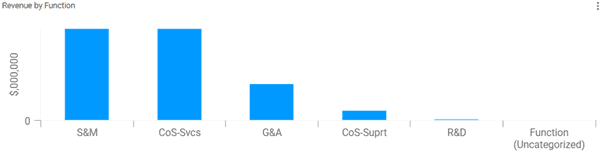
In previous releases of Workday Adaptive Planning, users were not able to suppress 0 values in visualisations. This meant that when a column/bar had no data, a blank column/bar would appear.
This caused some frustration for users as it had a negative impact on the visibility of the chart.
The Workday Adaptive Planning 2021 R1 release has now introduced a suppress feature for charts which will eliminate this concern.
- The screenshot below is an example of how the previous release handles 0 values in visualisations. As you can see, the Function (Uncategorised) still appears even though there are no values.
- If you compare the first screenshot with the screenshot below, you will notice that the Function (Uncategorised) column has been suppressed as there was no data.
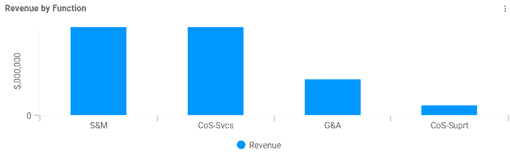
Something to consider with this feature is that suppression will not apply when the visualisation is broken down by time, and it will also not apply to geo maps.
Dashboard filter settings
The 2021 R1 release includes a new update for context filters in dashboards.
Users can change the default level and time by enabling the override default property on the context filter.
This has allowed for greater customisation, allowing users to modify the dashboard filters to suit their requirements.
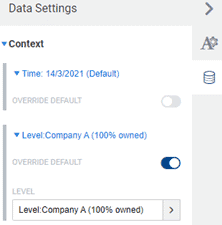
The introduction of this feature is an exciting step in the right direction. However, there are some notable limitations:
- Users are currently unable to set a default time period for a relative date (for example, prior month or current month).
- You are also only able to override the default values for the time and level filters.
Sheets on dashboards
Using sheets in dashboards has become easier in the 2021 R1 release with the enhancement of the perspective toolbar.
- When using a sheet in the maximised view, the context filters from the perspective toolbar can be used.
- If there are common filters between the perspective toolbar and the sheet, they will be disabled from the sheet view, which means users will need to use the filters from the perspective toolbar instead.
OfficeConnect feature enhancements
In the video below we walk-through some of the latest enhancements to OfficeConnect in the 2021 R1 release exploring: groupings for dynamic updates of structure, expand and collapse elements, filtering, review pane for troubleshooting, and workbook properties vs user settings.
You can also read a detailed breakdown of these OfficeConnect enhancements here.
OfficeConnect ad-hoc analysis
The previous Workday Adaptive Planning 2020 R2 release introduced the ability to expand and collapse rows and columns to allow more dynamic reporting.
This feature was great because users could quickly navigate between a high-level view of parent accounts and/or years or a more detailed view of the children.
However, this did have some limitations, such as the existing report structure interfering with the expand direction as well as limited elements available for expansion.
The 2021 R1 release has improved this feature and will help make reporting in OfficeConnect easier and more user-friendly.
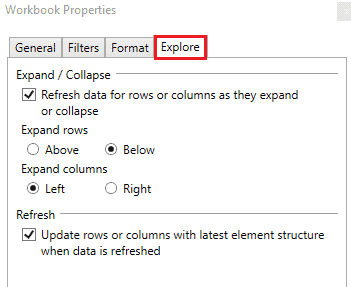
Firstly, users are now able to control the direction in which rows and columns expand.
- From the Workbook properties, there is now an explore tab which hosts these properties.
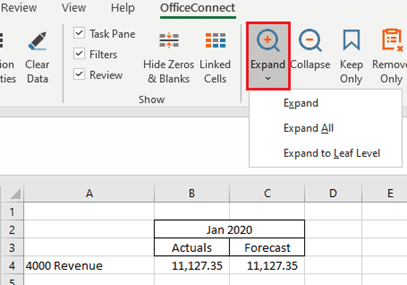
There are also options that allow the user to control the level at which to expand to. Under Expand, there are a few options:
- “Expand”, which will expand to the next level down (this was the previous behaviour)
- “Expand All”, which will display the entire structure
- “Expand to leaf level”, which will only show leaf accounts
From the ribbon, two additional properties work hand-in-hand with Expand and Collapse.
- The Keep Only property and the Remove Only property will allow users to select specific rows or columns to “Keep” or “Remove” from an expansion.
This gives users more flexibility around which accounts they want to show and hide.
It’s important to note here that using these features will break the expansion for further collapsing purposes.
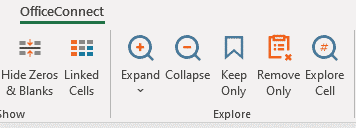
Finally, users are now able to Expand and Collapse on custom dimensions and attributes.
Drill down from cube sheets
A new drill-through feature for Actuals on cube sheets has been implemented in the 2021 R1 release.
Now users can either drill through by right-clicking on a specific cell from a cube sheet or using the explore cell feature. This will drill through to a Workday Adaptive Planning report, which has been set up through design integrations.
As mentioned, users must specify which report to drill through to from the design integrations page. From here, you can also specify which parameters will apply to populate the report.
One of the great benefits of this feature is that you can specify different drill through reports for different accounts, allowing greater flexibility for reporting and analysis.
- Note: The drill-through feature is not applicable for attributes or parent accounts.
Derived dimension values on modelled sheet rows
The 2021 R1 release has seen some improvements for mapping rules in both derived dimension values and dashboards.
This improvement introduces a new inheritance feature in which mapping rules applied to a parent level will automatically apply to the children of such accounts.
- If a mapping rule is applied at a child level, it will override the inheritance for that one instance.
This feature can be turned off by request if there is a specific requirement to have dimension mapping rules applied to a specific level.
Other notable inclusions in 2021 R1
The following features are issued with a word of caution. Changes to accounts and versions can impact the current setup and structure of your model.
If you are interested in making any changes to your accounts, it is advised that you contact a QMetrix consultant.
Calculated accounts
Creating calculated accounts has become more flexible in the 2021 R1 release by introducing a data entry override setting.
This will allow users to override the formula for a particular version and allow them to enter values without affecting the calculations for other versions manually.
- This feature is available on calculated cube accounts, custom accounts and GL accounts with master formulas.
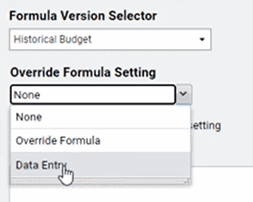
- The introduction of a “disable version specific formula” setting property allows the user to delete the override formula.
- When this is enabled, the account will pick up the default formula for all versions (including locked versions).

When a version was copied in previous releases, it would only include the default formulas, leaving behind any override properties. Now there is the option to Copy All Override Formulas when you copy versions.
Import cube and modelled accounts
There is now an import account structure button in both the cube and modelled sheet builders.
This feature is an excellent addition as it will make managing and updating the account structures of modelled and cube sheets a lot more efficient.
- Once you have exported the account structure through Generate Printable View, you will notice that there is now an additional column that holds all the account formulas.
- With this export, you can modify account details or create additional accounts and then reload this back in through the Import Account Structure button from the toolbar.

Connect with us and stay up to date with Workday Adaptive Planning news and releases: