
The Workday Adaptive Planning 2020 R2 release focuses on user experience, reporting flexibility, and modelling capabilities, notably enabling multiple personal sheet views on dashboards and introducing derived dimension values for modelled sheets.
What’s new in the 2020 R2 release:
Reviewing sheets and dashboards
A new preference feature has been introduced for sheets in dashboards that allow individual users to set their own sheet preferences. This allows for a more customised and personal approach as preferences can be set to suit individual needs and requirements.
Workday customers can interact with perspectives as usual. However, when they change filters or a display option, their preferences will be saved and be applied the next time they open the perspective.
- This feature is unique, which means that each user can have their own preferences saved for the same dashboard – eliminating the need to provide multiple views for a different audience.
Context filters
Context filters on sheets have become more dynamic and user friendly by controlling the filter options available.
When an attribute is selected from a context filter, the subsequent level and dimension filters will only be populated with options relevant to the attribute.
Not only will this feature make it easier for users to get the most value out of their sheets, but it will also eliminate combinations of attributes, dimensions and levels that do not apply to each other.
- Workday users can now filter sheets based on whether an element ‘Is Empty’ or ‘Is Not Empty’ will become particularly useful in data validation processes and check for data entry errors.
Updates to reporting
Sharing and Reporting in both the web application and OfficeConnect has been improved in several ways.
Sharing reports has become more dynamic by allowing reports to be shared to specific users or user groups and level access.
- Report owners can now nominate precisely who they want to be able to view their report.
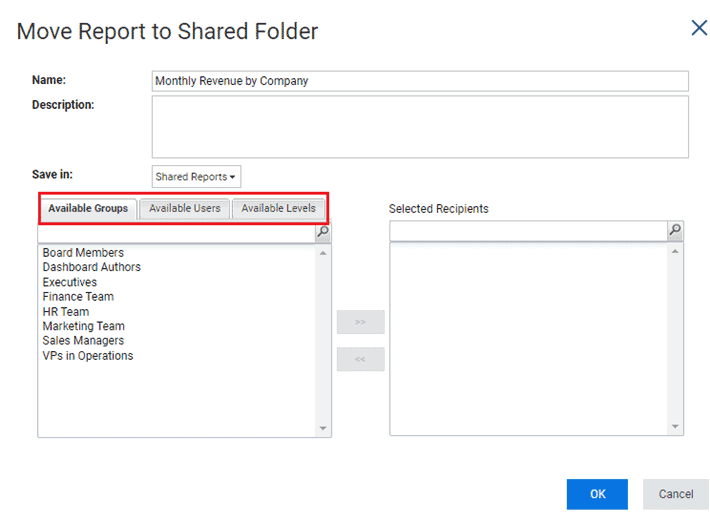
- When a report is shared with a user, the user will also need the necessary level of access to view the data.
Whilst they may be able to run a report that has been shared with them, they will only see data if their level of access allows them to do so.
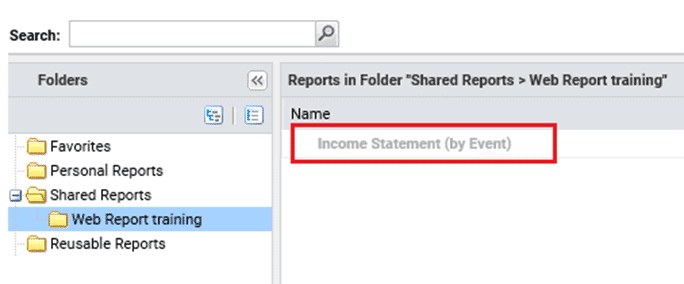
- Reports that are saved under a shared folder will be visible to all users who have access to the shared folder – however, if a user hasn’t been given specific access to a shared report, the report will appear as disabled and cannot be run.
OfficeConnect reports
OfficeConnect reports have also seen some great enhancements.
In the previous 2020 release, a grouping concept was introduced, which allowed children accounts of the same parent to be grouped.
This meant that when a new child account was added into the model or an account was removed, the elements and groups could be refreshed and updated to make the change visible in the report.
Whilst this made the process of updating reports much more seamless, there were some concerns.
Any existing OfficeConnect reports built before the 2020 R1 release were not eligible for grouping. That is – the only way to apply the grouping in an existing report was to rebuild the entire report’s structure.
This meant that a lot of users were not able to reap the full benefits of this feature.
In the 2020 R2 release, this feature has been enhanced.
Users can now update existing reports built before the 2020 R1 release and utilise the grouping functions.
- Users can either use the Group property from the toolbar or the context menu by selecting the accounts from the report.
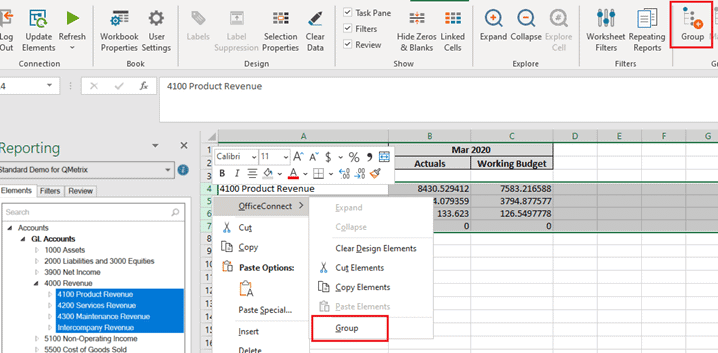
- When using the grouping function, all elements must belong to the same parent element.
- Groups can now be managed more easily through the Manage property.
The 2020 R2 release has also removed the manual process of updating elements by providing a Workbook property to Include Update Groups in Refresh.
This means by default; new elements will become available once the report is refreshed.
Modelling
The Workday Adaptive Planning 2020 R2 release has introduced the concept of Intelligent Planning and Machine Learning to planning.
Machine learning principles are applied to detect and predict any anomalies or outliers in planned versions.
This is a brand-new concept for Workday Adaptive Planning, and to enable anomaly detection, users must submit a support ticket.
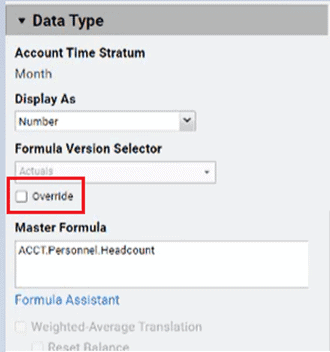
Using account formulas has become easier with the concept over override formulas.
- When a version is locked, account formulas are automatically saved as an override formula in that version. This allows edits and modifications to be made to the formulas without impacting the locked versions.
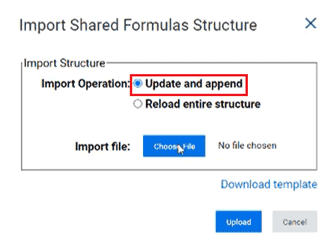
The process of updating shared formulas has also been enhanced. The previous process of modifying a shared formula required users to reload all of the shared formulas for a version back into Workday Adaptive Planning.
- In the 2020 R2 release, there is an option to update and append, which enables users to modify and reload specific formulas.
Connect with us and stay up to date with Workday Adaptive Planning news and releases: