
The Workday Adaptive Planning 2022 R1 update delivers faster, more accurate planning cycles. It enhances agility through greater modelling flexibility, an improved user experience, and boosted performance specifically designed for large-scale enterprise planning requirements.
Update and Append Structures for Import
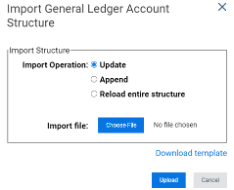
Update and appending account structures has been streamlined by removing the existing “update” and “append” options and replacing it with “update and append”.
Previous:
New:
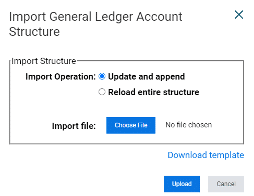
This allows you to update the existing account, level and dimension structures all within the one import process.
User Experience
Dashboards
The dashboard overview page has been enhanced and now is inline with the reporting overview page.
- A menu will appear down the left-hand side, separating dashboards and perspectives into their respective folders – whether they are personal, shared, snapshots or schedules.
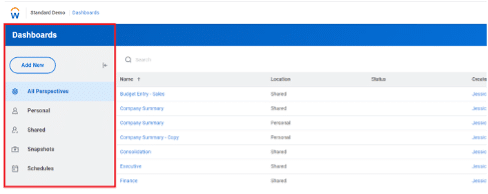
Viewing and accessing perspectives has become easier with the addition of a search bar at the top of the screen.
Users are also able to sort the perspectives in the folders by name, creator and created date.
When users checkout a perspective from the shared folder, a copy of the perspective is saved in the personal folder with the status column indicating that it has been checked out.
- At any point in time, the shared perspective can be accessed from the more menu.
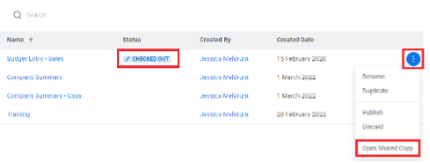
As soon as users publish the perspective it will be merged with the shared perspective.
Matrix report viewer
The user experience for matrix reports has also been enhanced in this release.
In previous versions, parameters were restricted to only display two on the menu bar, with the remaining hidden behind a change parameters icon.
- Now, parameters have been shifted down to sit just underneath the menu bar, making filtering reports a lot easier and more intuitive.
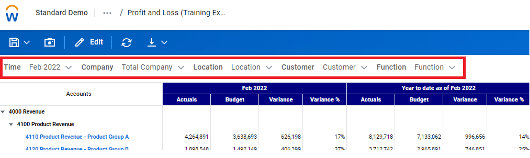
The icons on the menu bar have also been condensed – The save icon now uses a drop down arrow to allow the user to select whether to save or save as.
- Similarly, the download icon is condensed which prompts users to select to export the output into PDF or Excel.
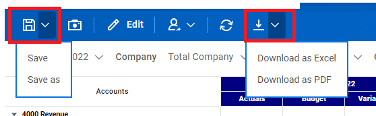
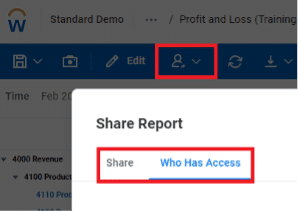
- Users can share the report and also see who has access to the report from the share icon.
- Using the advanced tab will allow you to select whether you want to show data on the report regardless of level access. (This should be used with caution).
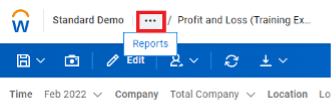
Previously, navigating back to the reports overview page from a matrix report viewer was tedious as the back button would take you straight back to your favourites folder, irrespective of where you ran the report from.
- Now, Workday remembers the location at which you ran the report from and will direct you back here from the report viewer.
Delay interface changes
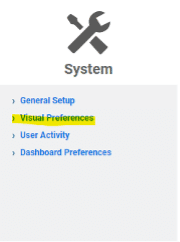
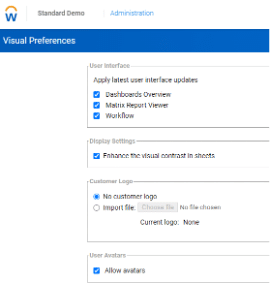
Users are now able to delay the interface changes until the following release through the change visual preferences option.
- This can be found under Administration>System>Visual Preferences.
Modelling
Level, dimension and attribute codes for display names
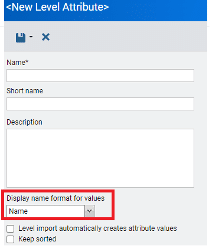
Users are now able to control the way in which levels, dimensions and attributes are displayed.
Along with the standard code and name, there is now a display name (similar to short name). Underneath the description, users can control the format of the display name.
- This display name can also be used as a label in OfficeConnect reports.
Cell Explorer in Cube Sheets
The cell explorer feature from cube sheets has been enhanced to pick up the dimensions used in the cube sheet to filter the target cube sheet.
This feature makes the process of viewing and adjusting data from a cube sheet a lot more seamless then having to filter the target cube sheet for the required dimensions.
- It is important to note that this feature will only work for dimensions that are shared between the source cube sheet and the target cube sheet.
- When the target cube sheet includes dimensions that don’t exist in the source cube sheet, not filters will be applied.
Hide/Unhide columns on modelled sheets
Within the display options menu from modelled sheets, a new hide column checkbox is available to allow users to choose which columns to show and hide.
- Users are also able to deselect the Hide column checkbox to prevent other users from hiding the columns.
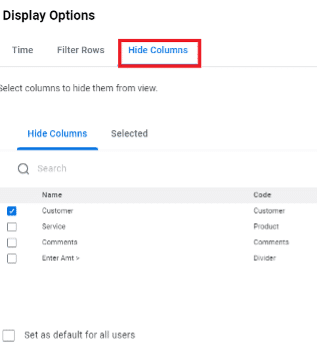
- When the hide column checkbox is enabled and selected columns are hidden, a carrot icon will be displayed to indicate that there are hidden columns.
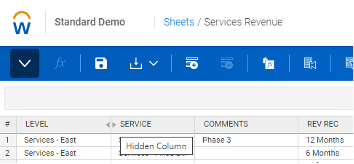
The hide columns option is also available on dashboard sheets.
Please note:
- When using the hide columns checkbox in a dashboard sheet, the hidden behaviour will automatically apply for all users who you share the perspective with.
- They will still have the option to hide/unhide columns from display settings.
- The reset to default property will reset back to the original perspective as per the administrators settings.
These updates are aimed to provide faster, more accurate planning cycles and greater agility to respond to business changes.
Connect with us and stay up to date with Workday Adaptive Planning news and releases: