The Workday Adaptive Planning 2024 R1 release is here. With this release, there is a combination of enhancements targeted towards the end user, as well as developers such as advanced reporting, stronger integration with Workday HCM, and improved modelling capabilities.
Report Scheduling
With the 2024R1 release we see the addition of report scheduling for Matrix reports.
This allows report administrators to create reports and either send a user group, or specific users report snap shots or notification reminders to run reports.
How to enable it
Users will notice a new Schedules tab from the reporting overview area, this is where you can manage all schedules you have created.
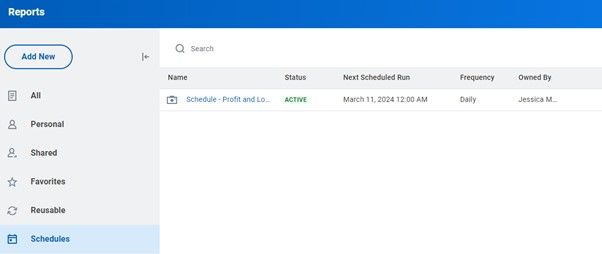
- By exploring the more button from a report, two new options appear – Create Report Schedule and View Schedules.
- View will allow you to trace back and identify any existing schedules that have been created already for this report to limit duplication.
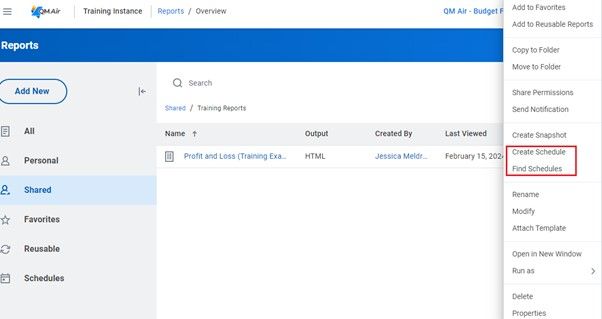
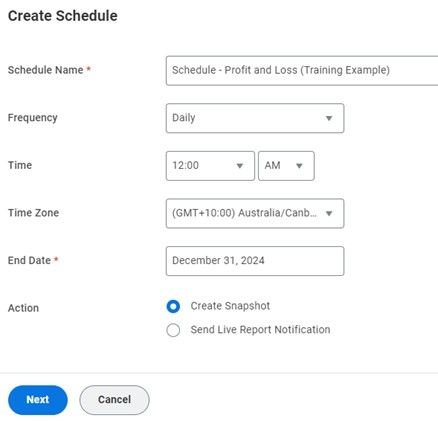
- Under the Create Report Schedule property, administrators can specify the frequency, Day of month, time etc.
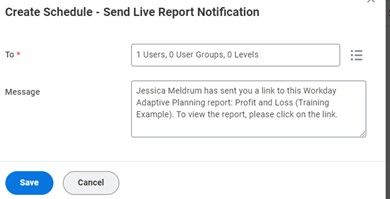
There is also the option to either create a snapshot of the report, to send across to users in either PDF or Excel, or send a live report notification. Notifications can be used to prompt users to run reports.
Live report notification:
Snapshot:
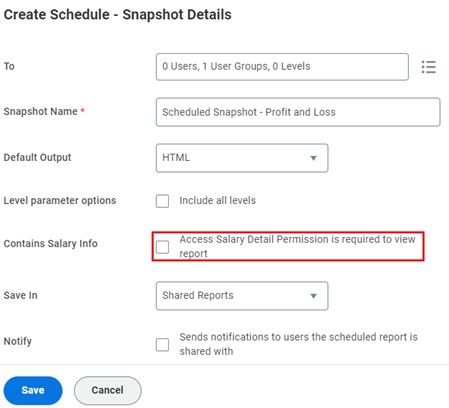
- When a snapshot schedule is created, further options are provided which allows you to specify the output (PDF/EXCEL), who to notify etc. Importantly, there is also the option to enable Access Salary Detail Permission is required to view report.
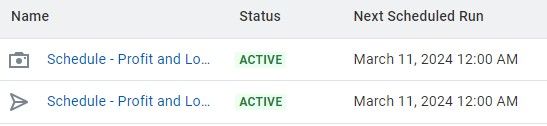
- From the Schedules overview page, you can identify which schedules are notification links or snapshots by looking at the icon on the left.
Permissions
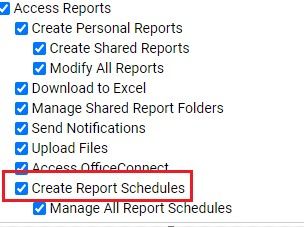
- Users are only able to create schedules on reports that they own, and with the following permission enabled.
Personal What-If Scenario
Key features and benefits
Users are able to create their own “Personal What-If” scenarios to test data changes without impacting the live data in your plan version.
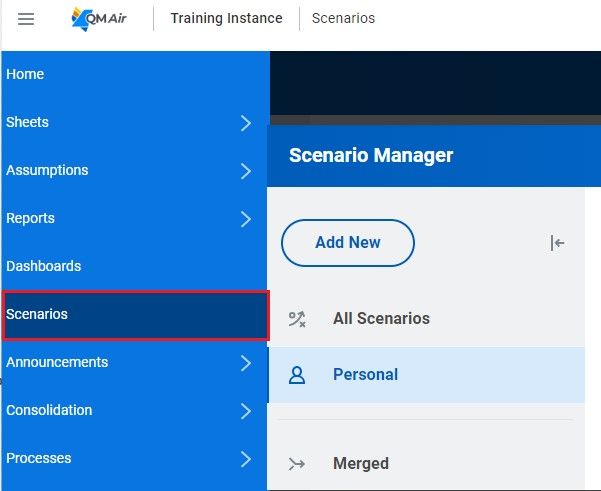
Personal What-If Scenarios have been enabled in Workday Adaptive Planning and can be accessed via the Scenarios page via the navigation menu.
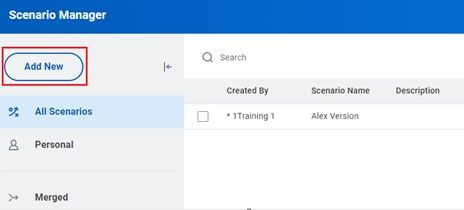
- These can be created via the newly added Scenarios area from the navigation menu, or directly in the sheet or dashboard.
- This will only be visible to users who have the Access Scenario Manager permission set enabled.
How to enable it
Scenarios page:
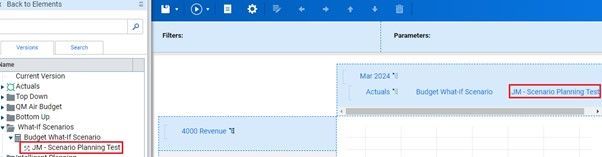
Via sheet:
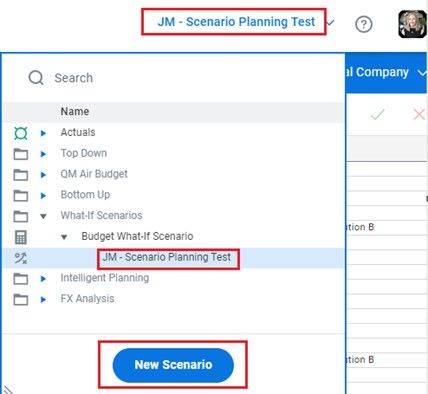
- Scenarios are tied to an existing budget version.
- In the screenshot above, our new version is tied to the “Budget What-If Scenario” and is nested directly under this version.
- Any changes that are saved are highlighted in green.

- These scenarios are then able to be viewed in reports and dashboards, allowing the end user to thoroughly test the scenario and analyse the changes.
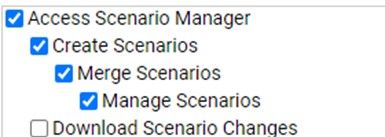
- The changes can be viewed in more detail by downloading the changes, via Scenario Manager. This requires the Download Scenarios permission to be enabled.
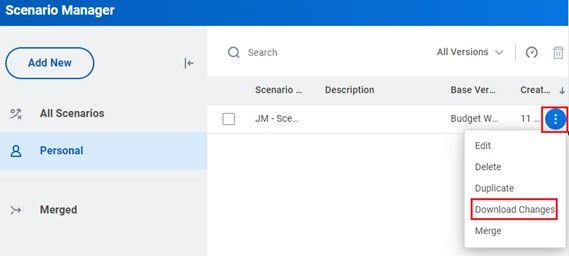
- From Scenario Manager, Users are also able to merge the changes into plan versions in an efficient manner.
Permissions
- By default, if a user has the Access Sheets – Editable sheet access permission enabled, they will already have access to the Create Scenarios and Merge Scenarios permissions.
- Alternatively, If a user has access to the Version permission under Model Management Access, they will automatically have access to Create Scenarios, Merge Scenarios and Manage Scenarios.
Scope calculations on sheets
Key features and benefits
A new tab has been added to the Sheet Properties which allows you to specify start and end times for calculations. By limiting the cells the calculation is computing it will improve the performance of the sheet.
- This new feature is available both on level assigned sheets and user assigned sheets.
- It is also available on modelled and cube sheets, however is currently not available on standard sheets.
Where to find it
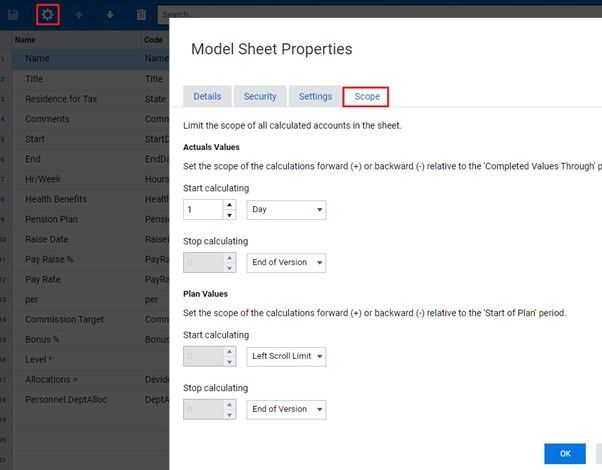
As shown in the image above, if no “start calculating” and “stop calculating” times are specified, it will default to the start/end of version.
Headcount forecast planning – Workforce Planning
Users leveraging Workforce Planning can enjoy two enhancements with this release.
- Users are now able to create forecast plan versions based of your prior plan and actuals versions. This will make it easier to adjust the forecast using relevant data.
- In Addition, users are now able to create positions directly from approved headcount plans, meaning that making adjustments is streamlined the manual adjustments are limited.
Note: These features are only available for Workforce Planning customers, and as such, must have the feature enabled.
Integrating source systems with Workday Adaptive Planning
Connect with us and stay up to date with Workday Adaptive Planning news and releases: